
According to a blog from a digital agency in UAE, YouTube holds the second spot on the list of most-used social media platforms worldwide with a whopping 2.7 billion users, following Facebook which ranks the highest. It is believed that more than 720,000 hours of video are uploaded to YouTube every day. A user spends 19 minutes on YouTube on a daily average.
When ranked according to the most number of YouTube users by country, India ranks first (476 million active users) and the Philippines holds the 10th place with 58.1 million users.
YouTube’s global users are expected to reach 2.85 billion by 2025, many thanks to the content creators, vloggers, influencers, and digital marketers.
YouTube is a platform for audio/video needs in digital format: music, entertainment, education, clips, news, shorts, content marketing, including an avenue for fame and making money.
While YouTube is relatively an information haven for quick tutorials and legitimate content, our children may still unknowingly jump from a harmless video to an inappropriate one in seconds. Suggested videos and autoloading of videos may lead them to a totally unrelated content from the original search in just one click.
So how do we safeguard our children and ensure they are only accessing age-appropriate content on YouTube?
As parents, we can set a parental lock.
Setting up a parental lock on YouTube
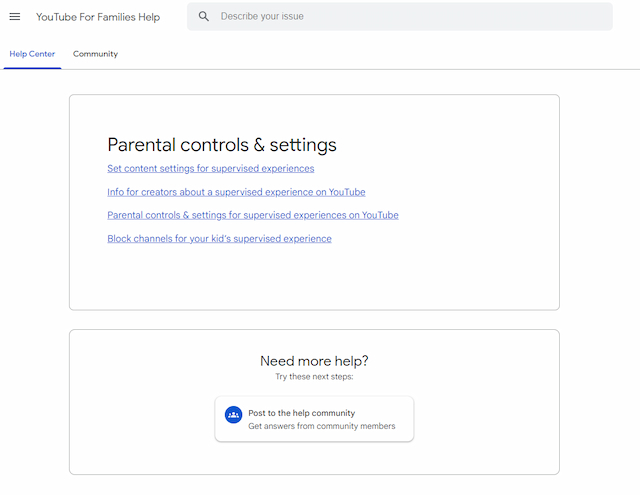
Here's how you can enable and manage controls according to its help center:
On YouTube Kids App
For younger children, the YouTube Kids app offers a more controlled environment with built-in parental controls. Here's how to set it up:
Built In Parental control
1. Download the YouTube Kids App.
2. Create a Profile.
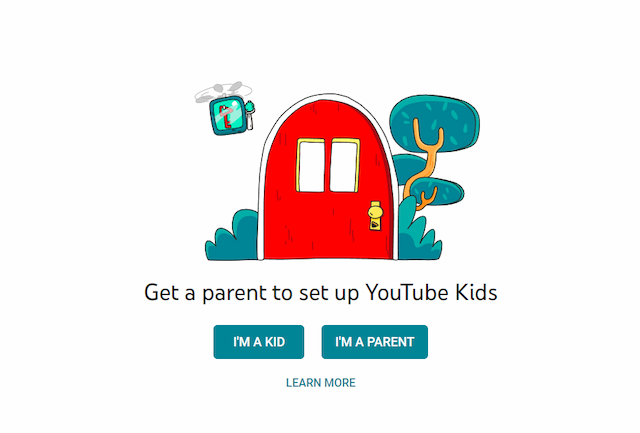
3. Open the app and create a profile for your child. You’ll be asked to enter your birth year and sign in with your Google account.
4. Set Up Parental Controls:
Customize settings such as content levels (Preschool, Younger, and Older) and whether to allow searching. You can also set a passcode to prevent your child from changing settings.
Manage parental controls on already installed YouTube Kids app
You can view parental controls and settings for YouTube Kids profiles from YouTube Kids:
- Select the Lock icon in the corner of your screen.
- Complete the multiplication problem or enter your custom passcode.
- Select Settings.
Manage parental controls through the Family Link App
To view parental controls and settings for YouTube Kids profiles from Family Link:
- On your device, open the Family Link app Family Link.
- Select your child.
- Tap Controls and then Content restrictions and then YouTube.
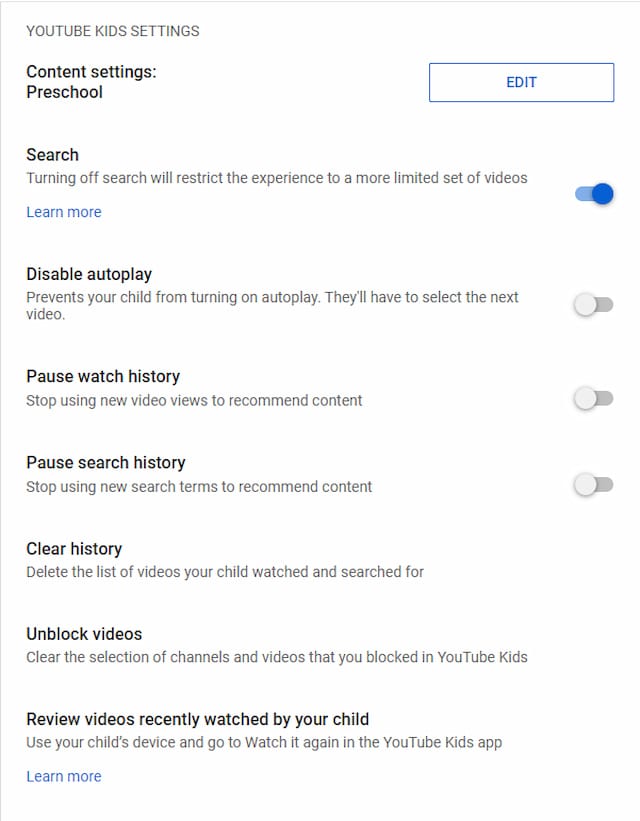
Change your YouTube Kids settings, under "YouTube Kids Settings."
What you can control
You can customize the YouTube Kids experience for your child by adjusting specific parental controls and settings.
These controls and settings let you:
Block or share content with your child
Change your child’s content level setting for YouTube Kids
Note: You can also change your child’s YouTube Kids content setting to Approve content yourself using the YouTube Kids app.
Turn off the Search feature for YouTube Kids
Review your child’s watch history
Clear your child’s history
Disable autoplay
Pause your child’s watch history
Pause your child’s search history
Turn on YouTube Premium benefits for your child
Regular YouTube App and Website
For older children who may use the regular YouTube app or website, you can use the following methods:
Through your linked parent account
- Sign in to YouTube with your linked parent account.
- Go to your profile picture .
- Select Settings.
- Select Parent Settings.
- If you’re on a computer, select Manage settings for your kids, next to “Parent Settings.”
Through Family Link App
- Download the Family Link app for parents on your device.
- Follow the instructions to create a Google Account for your child.
- Manage YouTube Settings by opening the Family Link app.
- Select your child's account.
- Under "Settings," select "Manage settings" > "Filters on Google Chrome" > "Manage sites" > "Approved or Blocked."
- You can also manage YouTube settings directly by selecting "Manage settings" > "YouTube."
How to change specific controls or settings:
Block Content
Change your child’s content level setting from YouTube:
- Sign in to YouTube with your linked parent account.
- Go to your profile picture .
- Select Settings .
- Select Parent Settings.
- Select your child’s profile or account.
- If you’d like to change the content setting for their supervised experience on YouTube:
Under YouTube settings, select EDIT next to “Content Settings.”
Review Watch History
Review your child’s watch history for their supervised account on your child’s device:
- Go to the My Activity page.
- Select YouTube History.
- Select Manage history.
- Scroll to review watch history.
Disable Auto-play
To disable autoplay for your child from YouTube:
- Sign in to YouTube with your linked parent account.
- Go to your profile picture .
- Select Settings .
- Select Parent Settings.
- Select your child’s profile or account.
- Switch Disable autoplay to on.
Pause Search History
To pause your child’s search history from YouTube:
- Sign in to YouTube with your linked parent account.
- Go to your profile picture .
- Select Settings .
- Select Parent Settings.
- Select your child’s profile or account.
- Switch Pause search history to on.
Restricted Mode
You can also turn on the restricted mode for YouTube.
Android App
- Sign in to your account.
- At the top right, tap your profile photo .
- Tap Settings and then General.
- Turn on Restricted Mode.
Mobile site
- Go to m.youtube.com.
- At the top right, tap your profile photo .
- Tap Settings and then Account.
- Turn on or off Restricted Mode.
Important Safety Tip
Discuss online safety to your children. The digital platform is vast and broad and while there are tools that aid us parents to keep them safe from online predators, it is important that they also know how to safeguard themselves. They should learn not to engage with people online whom they don’t really know, to stop whatever they are watching which makes them feel uncomfortable, to tell you if they have watched a confusing or troublesome content for guidance and explanation, and to not upload videos with sensitive information or without seeking your approval.
Want to know how to effectively protect your child from online danger? Here are 5 steps!
Source: YouTube for Families Help Center, YouTube Help Center
More from sp

Lorem ipsum dolor sit amet, consectetur adipisicing elit, sed do eiusmod
Lorem ipsum dolor sit amet, consectetur adipisicing elit, sed do eiusmod