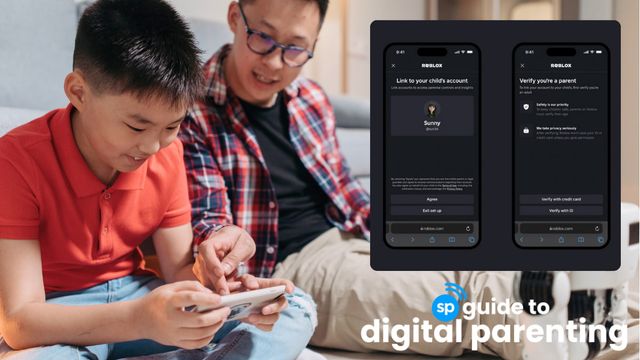
Roblox. It's a name that echoes through homes across the globe, a digital playground where kids create, explore, and connect with friends through online games. In the country, Roblox made waves by being the second most-used mobile gaming app in 2023 according to a statistical report, with 67.3 million daily active users, 80% of whom were under the age of 16. It came second to Mobile Legends Bang Bang, with around eight million downloads.
For many, it's a vibrant hub of creativity and social interaction among youth and very young children. But like any online platform, Roblox comes with its own set of challenges and potential risks such as bullying and trash talk, Roblox porn/rape, allegations of self-harm, and recurrent violent theme, among others.
That's where parental controls should enter the picture. Understanding and utilizing these tools is crucial for ensuring your child's safety and well-being in the Roblox universe, if keeping the app is personal preference. In this article, you'll learn about Roblox parental controls, which aims to empower you in creating a positive and secure experience for your child.
Understanding the Roblox landscape
Before diving into the controls, it's important to understand what Roblox is and why parental supervision is necessary. Roblox isn't just a game; it's a platform where users can create and share their own games, experiences, and virtual worlds. This user-generated content is a double-edged sword. It fosters creativity and innovation because app users can be game creators, but it also means that its content can vary significantly in quality and appropriateness.
Additionally, Roblox is a social platform, which allows kids to interact with other players, which may open up potential concerns about online interactions and privacy.
Also Read: Concerns Raised Over Roblox’s Child Safety: Key Info For Parents
Keeping kids safe in the metaverse: navigating the new parental controls on Roblox
Roblox offers a robust set of parental controls, accessible through the account settings.
According to the site, they’ve updated the way parents manage their child’s experience on Roblox by introducing Roblox accounts with parent privileges. After linking an account to their child’s, parents can now view and update parental controls for their child all from their own device.
With the new parental controls, parents can now get access to insights about their child’s Roblox usage, such as their daily screen time (to set a limit on it) as well as access to their on-platform friends.
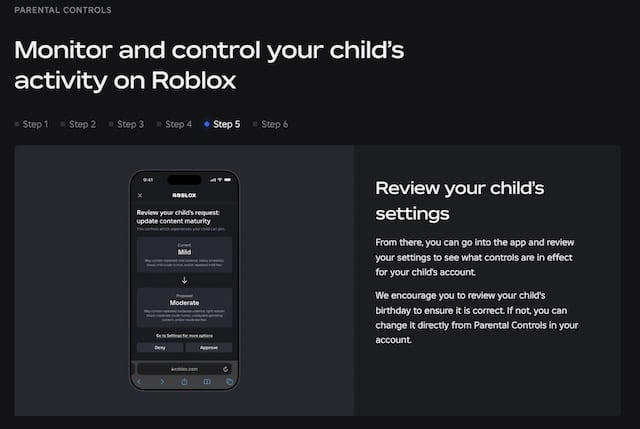
Here's a breakdown of the key features and how to use them:
Daily Screen Time Restrictions
This is your primary tool for controlling what your child can access at a given period of time. You can enable a minimum of 15 minutes a day and once time's up, Roblox can only be accessed the following day. Enabling this account restriction determines how long they can stay online. This is a great starting point, especially for younger children.
How to: Access your child’s parental control settings and set daily screen time limit according to the choices on the dropdown menu.
Privacy Settings
These settings allow you to manage who can contact your child and how. You can control who can message, chat with, or follow your child. You can also restrict access to voice chat and other communication features.
How to: In the same Privacy or Parental Controls section, you'll find options to customize these settings. You can typically choose from options like "Everyone," "Friends," or "No one." For younger children, limiting communication to "Friends" or "No one" is generally recommended.
Chat Settings
Even with privacy settings in place, it's wise to review the chat settings. You can filter chat content to help block inappropriate language and also limit who your child can chat with.
How to: Within the parental control settings, look for options related to chat. You can usually select a chat filter level and restrict chat to friends only or direct chat to no one (parent only).
According to their site, “Users under the age of 13 now need parent permission to access certain chat features in experiences, and are no longer able to use Roblox Chat to communicate with others on Roblox outside of experiences. Users under the age of 9 also need parent permission to access experiences with content maturity “Moderate,” which may contain things like moderate violence or moderate crude humor.”
Maturity Settings
This controls the level of matured content your child can access, hence limiting the settings from minimal to restricted.
How to: Adjust content maturity according to age appropriateness–mild setting, for example, includes unrealistic violence, blood, and/or mild fear. Restricted is only accessible to 17 years of age and above.
Roblox Tip: Double check your child’s birthday to ensure they can only access the age-appropriate content.
Spending Controls
Roblox uses an in-game currency called Robux, which can be purchased with real money. You can set spending limits to prevent unexpected charges.
How to: Still under parental control settings, you can set monthly spending limits and elect the amount to put a cap on purchases or set it simply to zero. It also has a subcategory dedicated for spending notifications for Roblox purchase activity.
We’ve accessed the Account Restriction settings before and we have a PIN too, isn't that enough?
Roblox says that, due to the changes, “parents are no longer able to set a parent PIN, use Account Restrictions, or receive account-related notifications to their parental email. To continue receiving notifications about their child’s account related to spending or other important activity, parents need to set up a Roblox account with parent privileges and link to their child’s account."
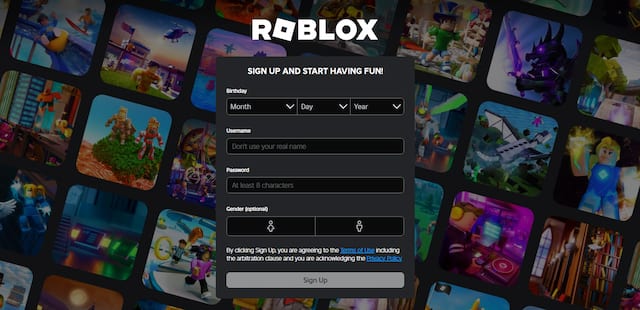
Moreover, "Existing parental emails on child accounts will continue to be used for account recovery. For users under 13, any settings previously set using a parent PIN have not changed, but parents need an account with parent privileges to make updates going forward.”
As always, if you, as parents, are interested in an added layer of security for your child's account, you can set up two-factor authentication.
Watch the online gaming app’s short clip on new parental controls on Roblox.com. For a more in-depth guide, click here.
Read Also: Parents Are Worried About Their Kids' Online Safety, But Aren't Talking About It
Talking to Your Child About Online Safety
Parental controls are a valuable tool, but they're never a substitute for open communication and online safety education. Talk to your child about online safety, emphasizing the importance of:
- Protecting their personal information: Explain why they should never share their real name, age, address, or school information online.
- Be cautious about online interactions: Discuss the potential risks of talking to strangers online and encourage them to report any disturbing or uncomfortable interactions to you. Children should also be educated about identity theft so their information won't be abused.
- Respecting others online: Emphasize the importance of being kind and respectful to other players and avoiding any form of cyberbullying.
- Being mindful of in-app purchases: Discuss the cost of Robux and the importance of getting your permission before making any purchases.
Roblox is constantly evolving, so it's important for parents to stay informed about any changes to the platform and its safety features. Review your child's account settings regularly and talk to them about their experiences on Roblox. No matter how advanced the technology gets, our genuine concern and day-to-day check-ins will safeguard them the most.
Should we really allow our kids to play Roblox? A dad shares his thoughts here.
More from sp

Lorem ipsum dolor sit amet, consectetur adipisicing elit, sed do eiusmod
Lorem ipsum dolor sit amet, consectetur adipisicing elit, sed do eiusmod